Build and ship with a Release workflow
A Release workflow prepares an artifact and routes it to one or more destinations. It uses a different editor and runtime from the graph-based pipeline.
Configure a workflow
- From the dashboard, choose New workflow in a project.
- Complete Details, select and configure a Source, then add Destinations and their deployment slots. Pipelab checks the selected Source as you fill its fields. Blocking issues appear beside the relevant field; retry the inspection if it fails.
- On Review, check the proposed setup. Pipelab resolves a recommended build when a destination needs one and validates the result with the workflow planner. For a typical desktop project, this can add an Electron build for Windows x64 automatically.
- Choose Create release. If a destination needs build setup that cannot be resolved automatically, the workflow is still created as a draft and its readiness state explains what needs attention.
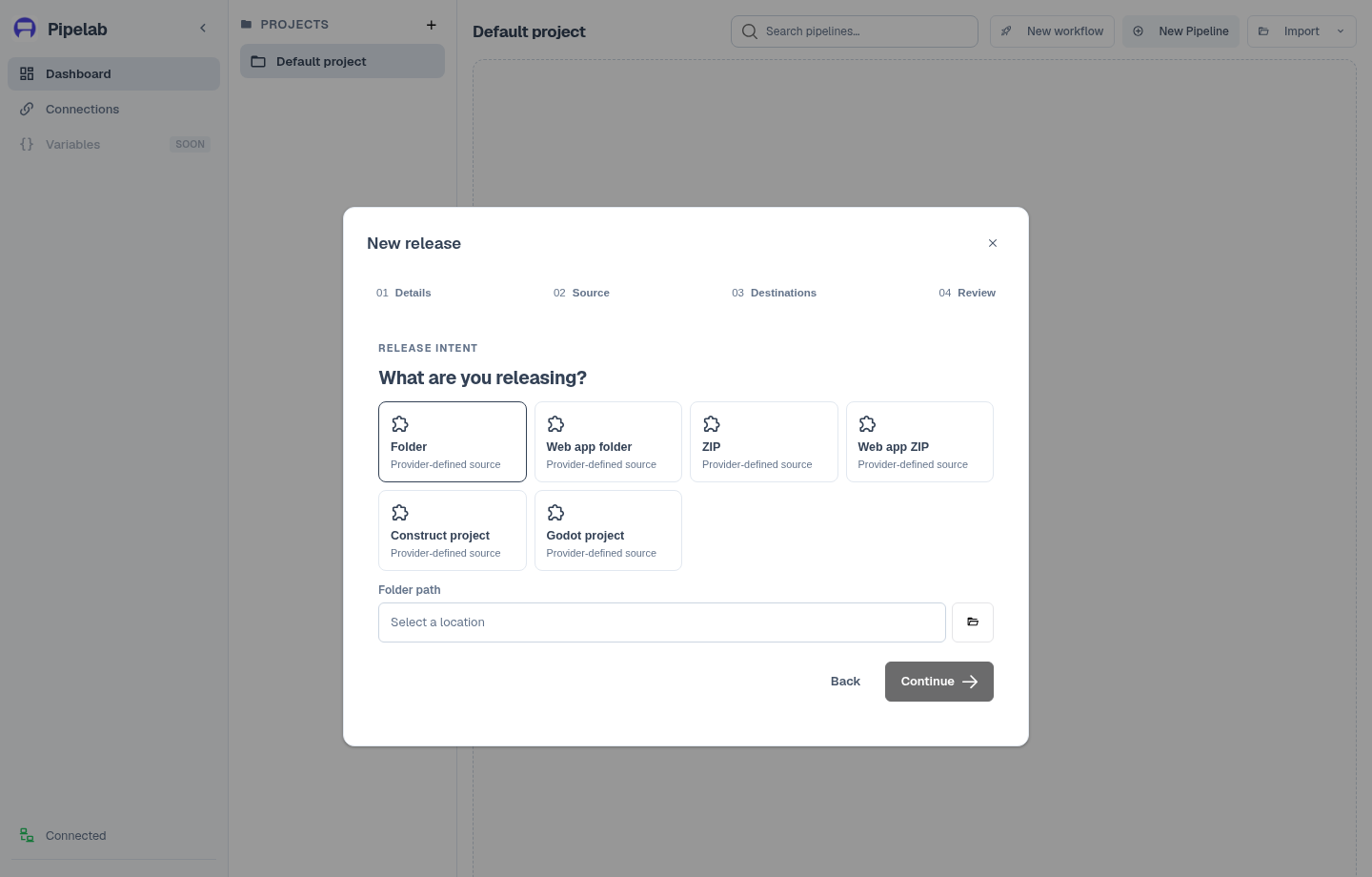
Provider cards are populated from the providers available in the application. Compatibility depends on the artifact type, destination, selected target, and host. The provider catalog links to the exact inputs, credentials, tools, and target limitations for each provider.
Workflow sections
The workflow editor has four sections: Configuration, Builds, Artifacts, and Runs. Configuration is the main view for the source and destinations. Its settings save automatically as you edit; there is no Save button. Opening a workflow does not change its saved build or routing choices. Choose Add destination to open the provider picker. Provider-specific settings remain in each destination's edit view.
Use Builds when you want to customize producers or targets. Adding a build is an explicit choice: select its type, engine, and target. Changing an engine clears incompatible targets until you select a replacement. The catalog shows when a target is unavailable on the current host and why. Configure a build to edit its settings or remove it; references to its outputs are never rerouted automatically.
Use Artifacts to find outputs across runs of this workflow. Artifact metadata is shown only when the run provides it. Local artifacts can be opened and cloud artifacts downloaded when those actions are available. Each artifact links back to its originating run. The Runs section remains available for run status, logs, and delivery details.
Sources, builds, and destinations
- A source provides the project or files that enter the workflow.
- A build chooses a producer and one or more build targets. Pipelab can recommend and validate a build during workflow creation. Later changes are made explicitly in the Builds section. A producer may inspect the project and report missing prerequisites before running.
- A destination receives a source or build artifact. Each deployment slot chooses the artifact it will receive and stores provider-specific settings.
The planner checks provider compatibility and can insert a provider-declared transform, such as extracting an archive when a producer requires a folder. A workflow can use one build output in more than one destination. Provider requirements are documented on their own pages, for example Steam, itch.io, and Poki.
Inspect a workflow without running it
The CLI can plan and compile a saved Release workflow without running its tasks:
pipelab workflow run release-id --dry-run --output ./release-plan.jsonReplace release-id with a saved workflow ID or a unique workflow name. A dry-run validates providers and references, then writes the plan if --output is provided. It does not execute deployment tasks. See the workflow reference guide and CLI reference.
Follow the run
Choose Ship to save the current workflow, validate the saved configuration, and start execution. Pipelab only starts the run after the current edits have saved and the planner reports a valid plan. After shipping, use Runs to inspect status, step logs, and delivery results, or Artifacts to discover outputs across runs. The Runs and history guide covers the run list, artifacts, and detail view.
Release workflows are not scheduled by Pipelab's current workflow format. The workflow runs when you choose Ship in the editor or invoke it through the CLI.